

Using the File Manager
Open WitherPanel
Select your server.
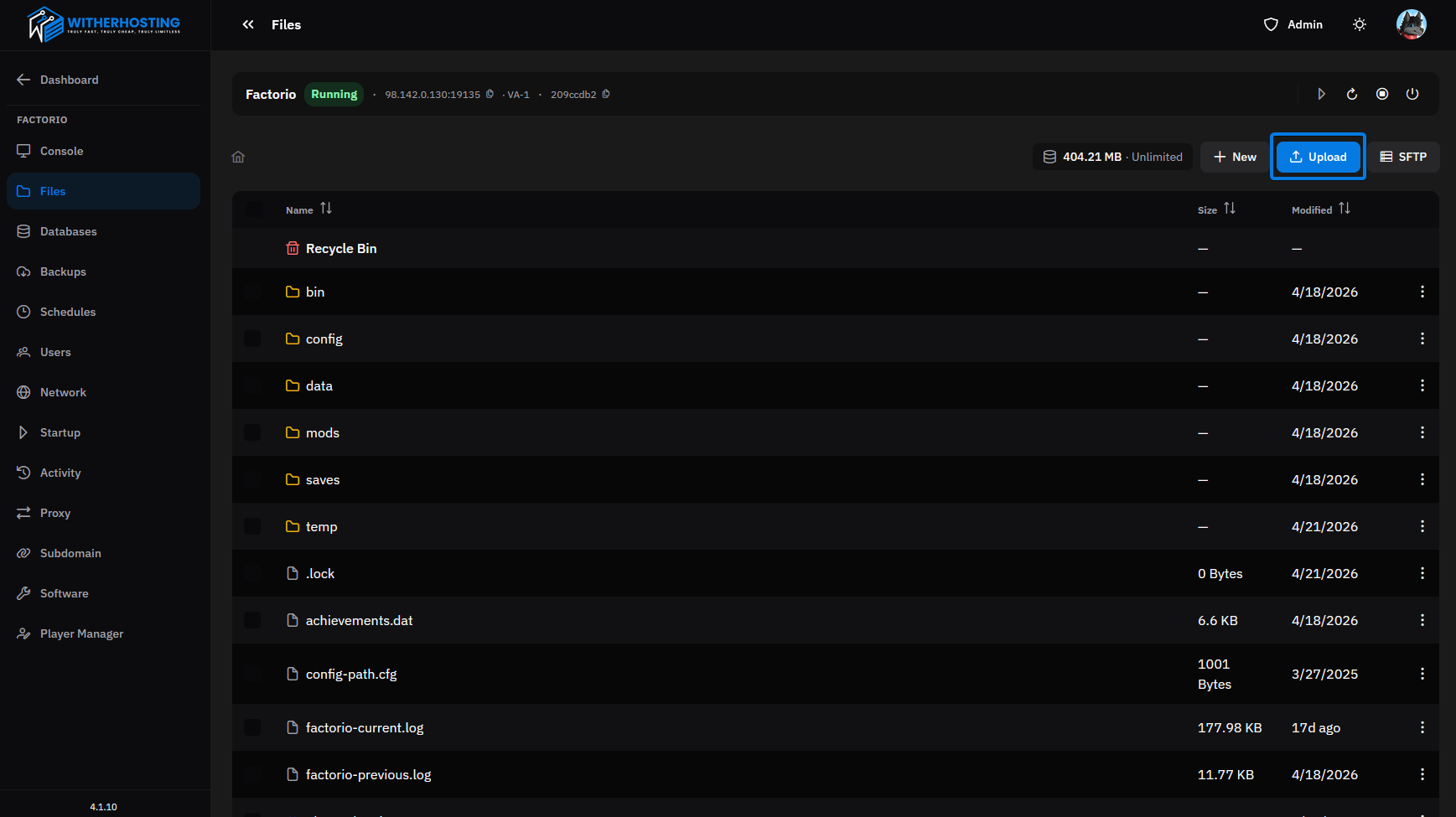
Go to the Files Section of your server.
Open the file or folder you would like to upload data into.
Drag and drop OR use the "Upload" button and place the file into the folder.
Using SFTP
To upload large or many files to your server, you usually use SFTP instead of the web file manager for faster and more reliable transfers.
1. Get your SFTP details
Open WitherPanel.
Select your server.
Go to the Files section of your server.
Click on SFTP next to the “Upload” button.
Use your panel password as your login password.
2. Download an SFTP client
Use a client such as FileZilla, WinSCP, or another SFTP-capable program.
3. Connect to the server
Open your SFTP client.
Enter the host, port, username, and password.
Choose SFTP as the protocol.
Click Connect.
4. Upload your files
After connecting, browse to the server directory.
Drag and drop files from your computer into the server folder.
Wait for the transfer to finish.
5. Verify the upload
Check the files in the file manager.
Make sure permissions and file names are correct.
Restart the server if the uploaded files require it.
Using SFTP is the preferred method for uploading large files or multiple files to a server.